This guide explains how to manage your WooCommerce VAT settings and what you need to know about VAT in general.
Jump to:
Launched in 2011, WooCommerce is a WordPress plugin that now has almost 4.5 million stores running on its open-source platform. That represents 33% of all ecommerce. A large portion of the web is built in WordPress, but that’s not all that makes WooCommerce appealing. From granular customisation to hundreds of extensions, this feature-rich platform is an obvious choice for many sellers.
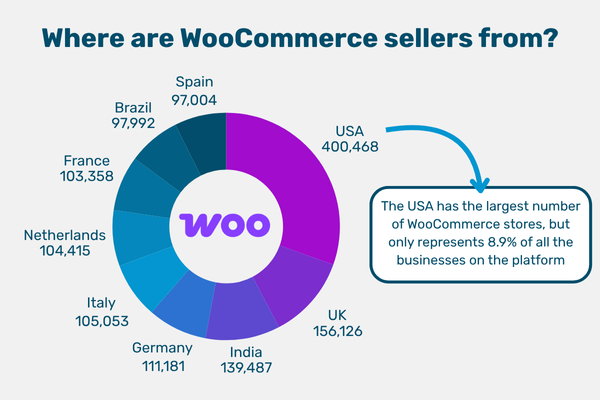
We like WooCommerce because it makes selling cross-border easy, and setting up your store to collect VAT is simple.
Value Added Tax (VAT) is an indirect consumption tax. It's paid by consumers at every stage of a product’s production and distribution. In this case, that means that the seller collects the tax from customers and passes it to the government. EU countries must use VAT, but you’ll find it in non-EU countries like the UK and Norway.
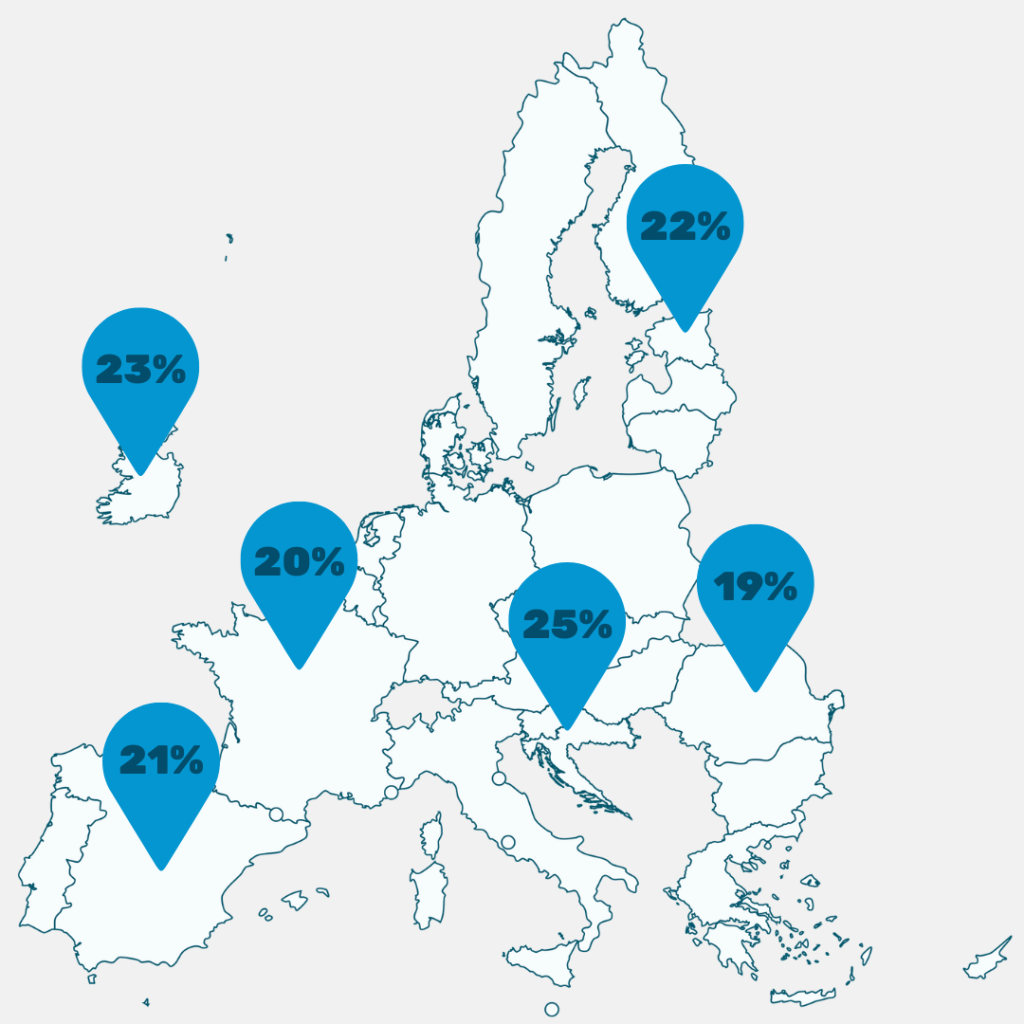
VAT is a percentage that you apply to the net price of your products or services. For example, the standard VAT rate in Germany is 19%. It’s included in the listed price unless otherwise stated. Each country sets its own VAT rates.
Before you can collect and pay VAT in a country, you have to register with that country’s Tax Authority. Once you’re registered, you’ll be given a VAT number, which will be unique to your business. You report the VAT you collect on your sales on a VAT return, which is a periodic report you send to the Tax Authority.
Selling something to a customer in a country that uses VAT creates a “VAT obligation”. That means, legally, you’re responsible for handling the VAT. There are multiple ways of doing that, depending on your circumstances.
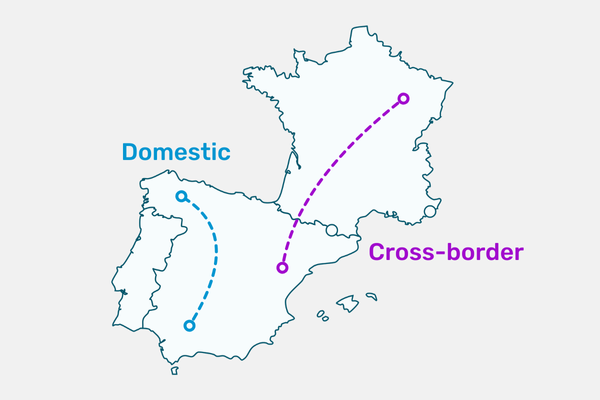
When you sell something online, your sale will either be domestic or cross-border. Domestic sales are those made to customers in the same country as you, the seller. Cross-border sales are international – your customer is in another country. Different VAT rules apply to sales depending on whether they’re domestic or cross-border.
When you sell something to a customer in the EU, you have a few different options for handling the VAT.
This is what most people think of when talking about VAT registrations. You register for VAT in a single country. For example, sell your products in France, so you’re registered for VAT in France and file a French VAT return.
Local registrations only cover transactions in a single country, but they cover everything. The VAT schemes we’re about to discuss have stipulations, like what’s being sold and where it is when it’s purchased.
Any business can register for OSS, but what you can use it for depends on where you’re based. Non-EU businesses can use OSS to report the movement of goods from one EU country to another. You’d register for OSS if you’re storing your stock in an EU country and selling it to customers in other EU countries.
If you’re holding stock in an EU country, you’ll still need a local registration. The presence of your goods creates a taxable supply which is only covered by the local registration. That registration will also cover any sales you make of those goods to customers in that country. Once you’re registered for VAT, you can register for OSS.
For example, you’re storing goods in Germany. You register for VAT in Germany and report sales of those goods to German customers on your VAT return. To sell those goods to customers in Austria, you register for OSS in Germany. Sales of those goods to your Austrian customers are reported on your OSS return.
This scheme only covers the sale of certain B2C services to EU customers by non-EU businesses. The most common for ecommerce brands is “electronically supplied services”. That includes:
IOSS is used to report the sale of goods from outside the EU to customers in the EU. It only covers goods shipped to the EU in consignments with an intrinsic value of €150 or less. Goods imported under an IOSS number clear EU customs duty and import VAT free, as VAT has been paid by the customer at the point of sale.
Businesses based outside the EU will need an intermediary (like SimplyVAT) to apply for IOSS. Once you’re registered, you have to report all applicable sales on your monthly IOSS return.
If you’re registered for IOSS and have orders that surpass the €150 threshold, you have three options:

When you sell goods to a customer in the EU, you have a couple of options for handling the VAT:
If you need to register for VAT or for a One Stop Shop scheme, you should do so before you start making sales.
The alternatives to registrations are Delivery Duty Paid (DDP) and Delivered at Place (DAP). DDP and DAP are Incoterms to describe how a product is shipped. DDP makes you, the supplier, the importer of record. That means you’ll pay all the import VAT, duties and customs fees involved in getting a shipment to your customer. DAP puts that responsibility on your customer. Their order will be held at customs until they have paid, and if they don’t, it will be returned to you. We don’t recommend using DAP long-term, as it’s a much worse customer experience.
Different rules apply to the sale of services. Typically, the place of supply (the place where the tax is due) for services is where the supplier is based. Only the provision of “digital services” requires sellers to collect and remit VAT in the country where their customer is located.
Digital services are a category of services that are defined by being “electronically supplied”. That covers things like eBooks, PDFs of sewing patterns, on-demand video courses and tickets to livestreams.
If you’re in Canada or the USA, you’ll probably know these things as “Digital Goods”.
If you’re selling digital services to a customer in the EU, you have two options:
Determining whether your services are “electronically supplied” can be very complicated. For example, whether you manually send your customer the email with their purchase attached or not can make all the difference. This has big consequences – if they’re not, you don’t need to register for anything. We recommend you talk to an expert if you’re selling digital services, just to make sure.
To start charging and collecting VAT on your WooCommerce sales, you need to update the settings.
For WooCommerce to calculate the VAT for you, you need to give it some information:
Once you’ve enabled Taxes and Calculations, you need to set it up so WooCommerce can charge your customers their local VAT rate. You’ll need to input the right VAT rate for each country, which we’ve made easy by putting them all in one list.

Once you’ve got the VAT rates, this is how you add them:
If your products don’t have the standard VAT rate applied to them, you can add reduced rates in a similar way under Reduced Rate Rates.
Once you’ve adjusted all your settings, test that they work with varying international addresses. If you run into problems, you can check the WooCommerce forum for support.
Once you’re registered for VAT and are collecting it, you’ll need to file VAT returns. We’ve made the process simpler for WooCommerce sellers with our API. Just connect your store to Tribexa, our VAT platform. We’ll automatically get your sales data every month, then prepare and file your returns for you.


